Advanced Search
Eatec supports the Advanced Search functionality that enables users to search for inventory items using precise search fields.
Advanced Search Option
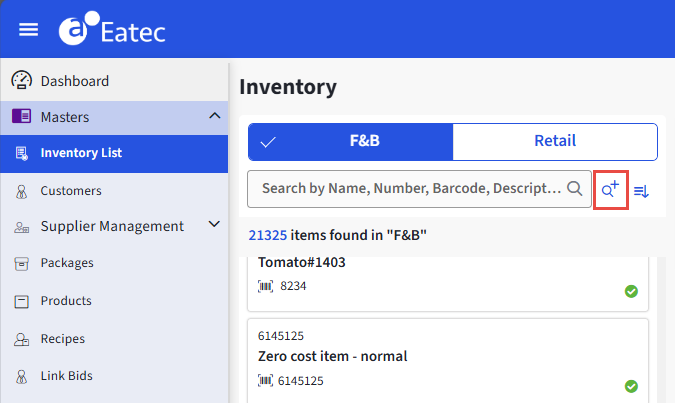
The search fields include the following for F&B inventory items:
-
Name
-
Description
-
Barcode
-
Number
-
Type
-
Class
-
Sub Type
-
Base Unit
-
Status
-
Lot ID
-
HAZMAT
-
Name
-
Purchase Unit
-
Transaction Unit
-
Recipe Unit
The search fields include the following for Retail inventory items:
-
Name
-
Number
-
Barcode
-
Description
-
Product Type
-
Name
-
Sub Type
-
Class
-
Alternate ID
-
Price
-
Cost
-
Remarks
-
Status
-
HAZMAT
-
Manufacturer
-
Size
-
Color
-
Style
-
Season
-
Brand
-
Base Unit
-
Purchase Unit
Advanced Search Pop-up Window
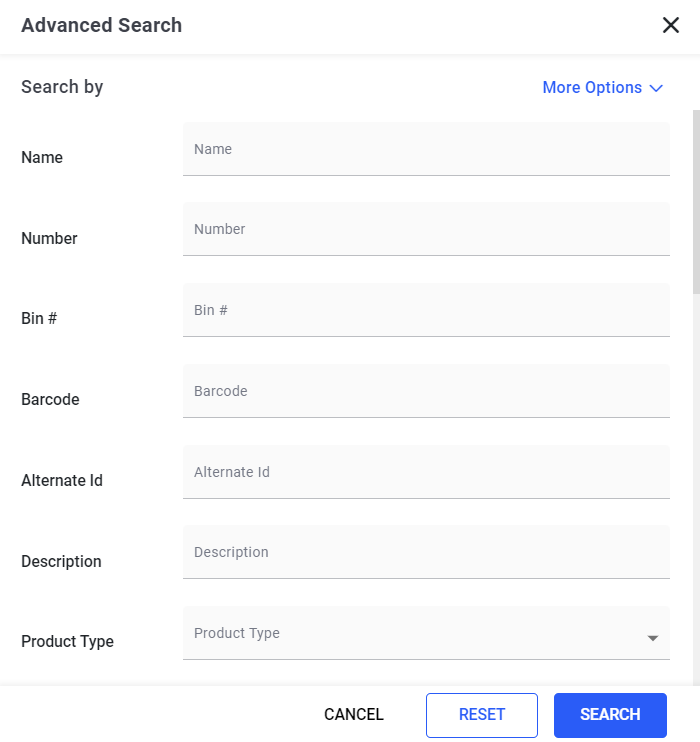
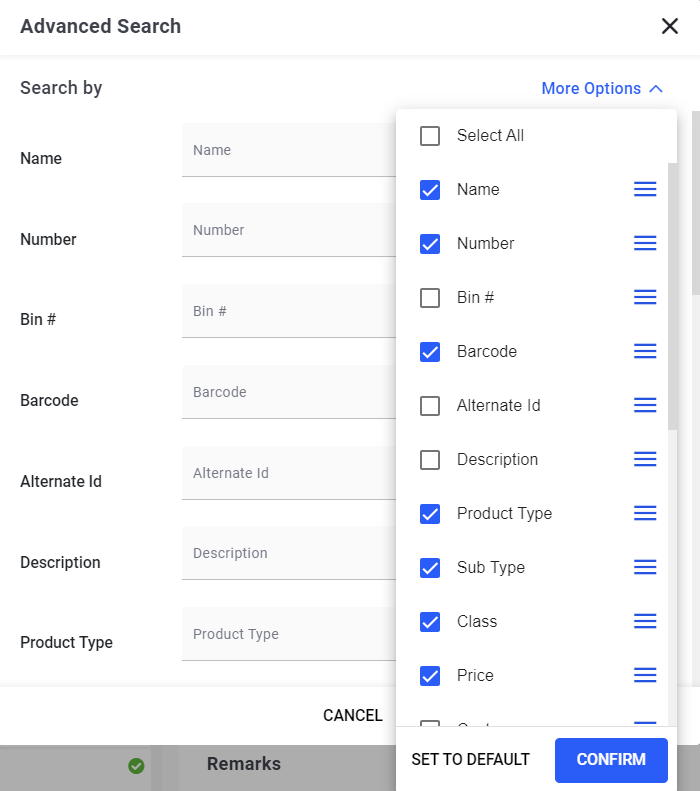
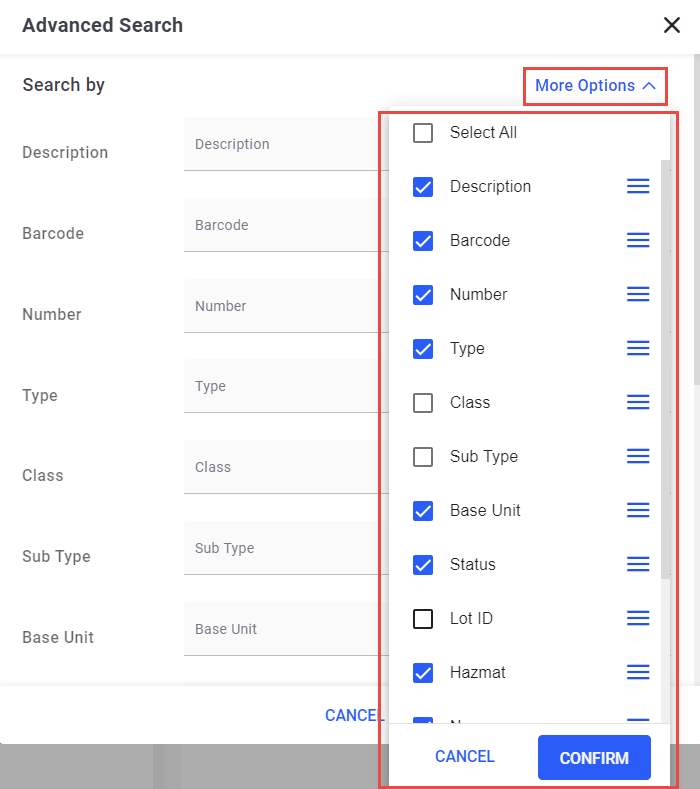
More Options
The Advanced Search functionality must comply with the following conditions:
-
The search must be performed considering all values entered in their respective fields.
-
The search must be performed based on the combination of different field values for a recipe.
-
Users can select their preferred search fields using More Options and confirm the same to be considered for advanced search.
-
Users must be able to view the search criteria entered after search results are displayed.
-
Users must be able to modify the search values until the user changes the search fields manually using More Options or navigates to a different page.
-
Advance search is applicable for both F&B and Retail products.
-
User must be able to switch between basic and advanced search.
-
Users must be able to reset the values to empty using Reset.
-
If multiple pre-defined options are available for search fields, users must be able to select one or more options from the drop-down list. Users must be able to search for a value within the drop-down list.
Basic Search and Advanced Search functionalities must have the Status field as Active by default to consider active items only.
Users can perform an advanced search using the bin number in the Bin # field under Masters ➜ Inventory List ➜ F&B/Retail tab ➜ Advanced Search.
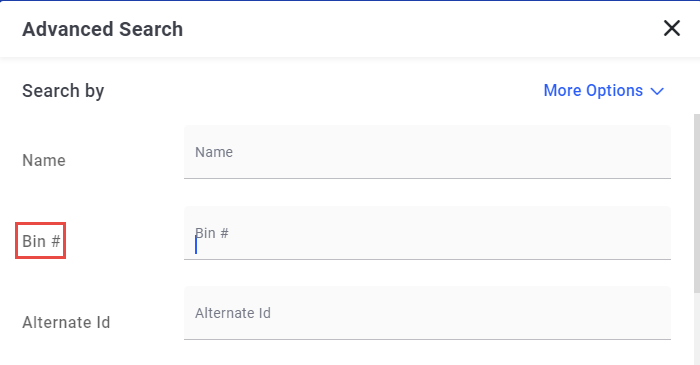
Once the search is completed, all items that bear the same bin number are displayed under the F&B/Retail tab.
Sequential and Non-Sequential Search
In Sequential Search, the user provided search value fetches results matching item names in the same order of words. For example, if the search input is Milk Chocolate, results display only the items named as Milk Chocolate.
In Non-Sequential Search, the user provided search value fetches results matching item names in any order of words and item name containing each word. For example, if the search input is Milk Chocolate, results display items such as Milk Chocolate, Chocolate Milk.
Users must configure the search preference in the Item Search Preference field under System ➜ System Preference ➜ Inventory Options in the Setup module.
Enabling/Disabling Search Fields
Users can select the search fields of their choice in the Advanced Search functionality using More Options.
Users must select the preferred checkboxes and confirm the same to display the selected search fields in the Advanced Search pop-up window and enter values in their respective fields to perform the search.
Advanced Search Filter for QOH for Inventory Items
Eatec has been enhanced where users can perform an advanced search for inventory items by using the QOH search filter in the Masters ➜ Inventory List ➜ F&B ➜ Advanced Search module. The QOH filter search can be performed using the following search criteria:
-
Greater than or equal to
-
Less than or equal to
-
Greater than
-
Less than
-
Equal to
This implementation is applicable to F&B and retail inventory items. The inventory items are filtered based on the QOH of the item for the current site. The filter results also depend on other filters as selected by users.